Powershell Scripts
Usage
Copy and Paste the scripts into your PowerShell profile. To open your PowerShell profile in VS Code type code $Profile. To open in Notepad type notepad $profile
Most scripts require additional software. Install the following software if you do not have it already:
winget install ajeetdsouza.zoxide
winget install junegunn.fzf
winget install sharkdp.fd
winget install sharkdp.bat
winget install BurntSushi.ripgrep.MSVC
winget install eza-community.eza
winget install jftuga.less
You will need to install the Visual C++ Redistributable package as well.
Add Invoke-Expression (& { (zoxide init powershell | Out-String) }) to your PowerShell profile
Detailed information can be found by clicking zoxide, fzf, fd, bat, ripgrep, eza and less.
PSFzf
PSFzf installs from PSGallery. More details here.
Install-Module -Name PSFzf
Paste the following into your PowerShell profile:
Set-PsFzfOption -PSReadlineChordProvider 'Ctrl+t' -PSReadlineChordReverseHistory 'Ctrl+r'
Set-PSReadLineKeyHandler -Key Tab -ScriptBlock { Invoke-FzfTabCompletion }
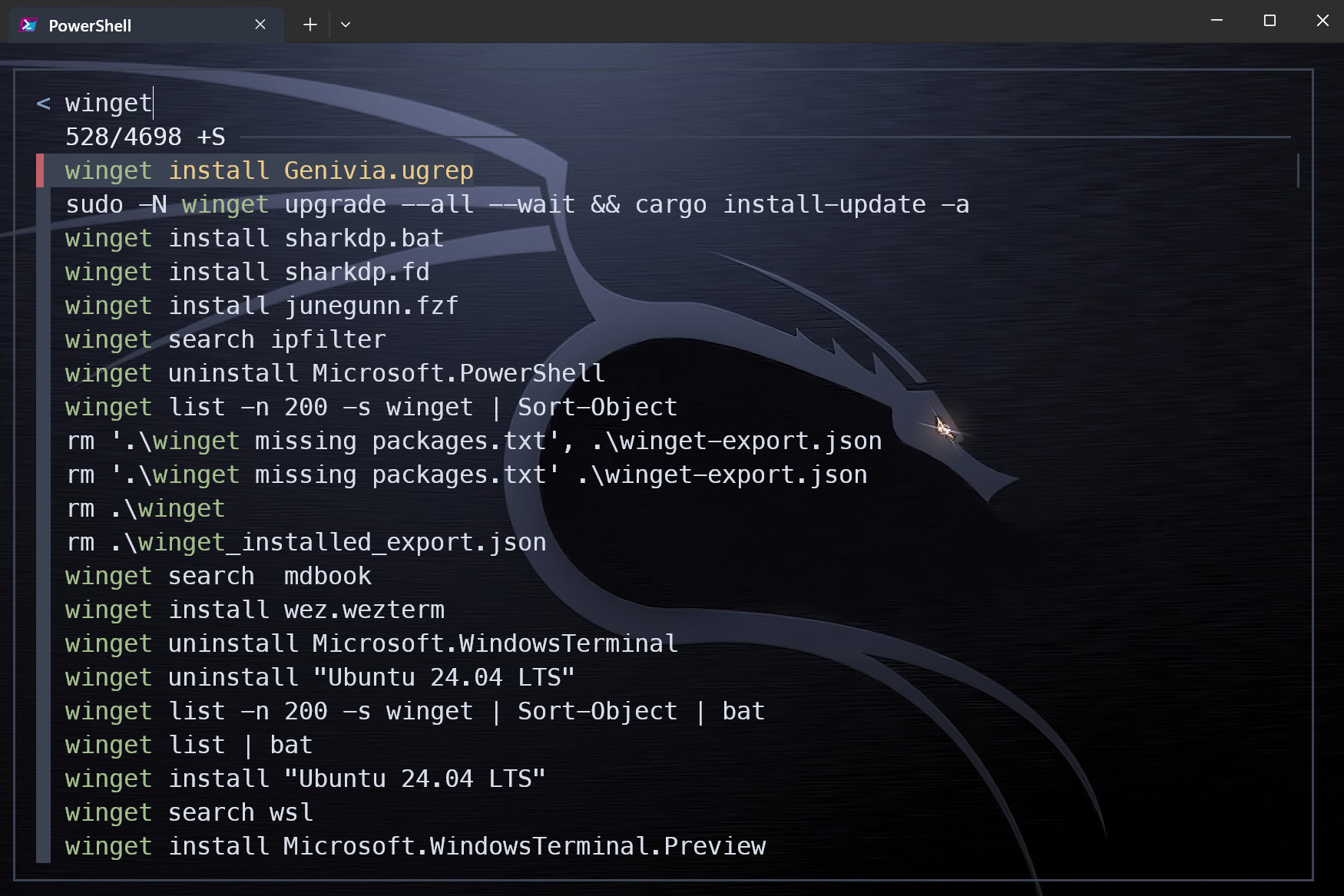
Type cd and press Ctrl + t and search for the directory you want to navigate to. Hit Enter twice to navigate to the directory.
Press Ctrl + r to list previous commands. Search and hit Enter twice to execute the command.
Press ↑ or ↓ to navigate the list.
Tab completion works out of the box.
Disks
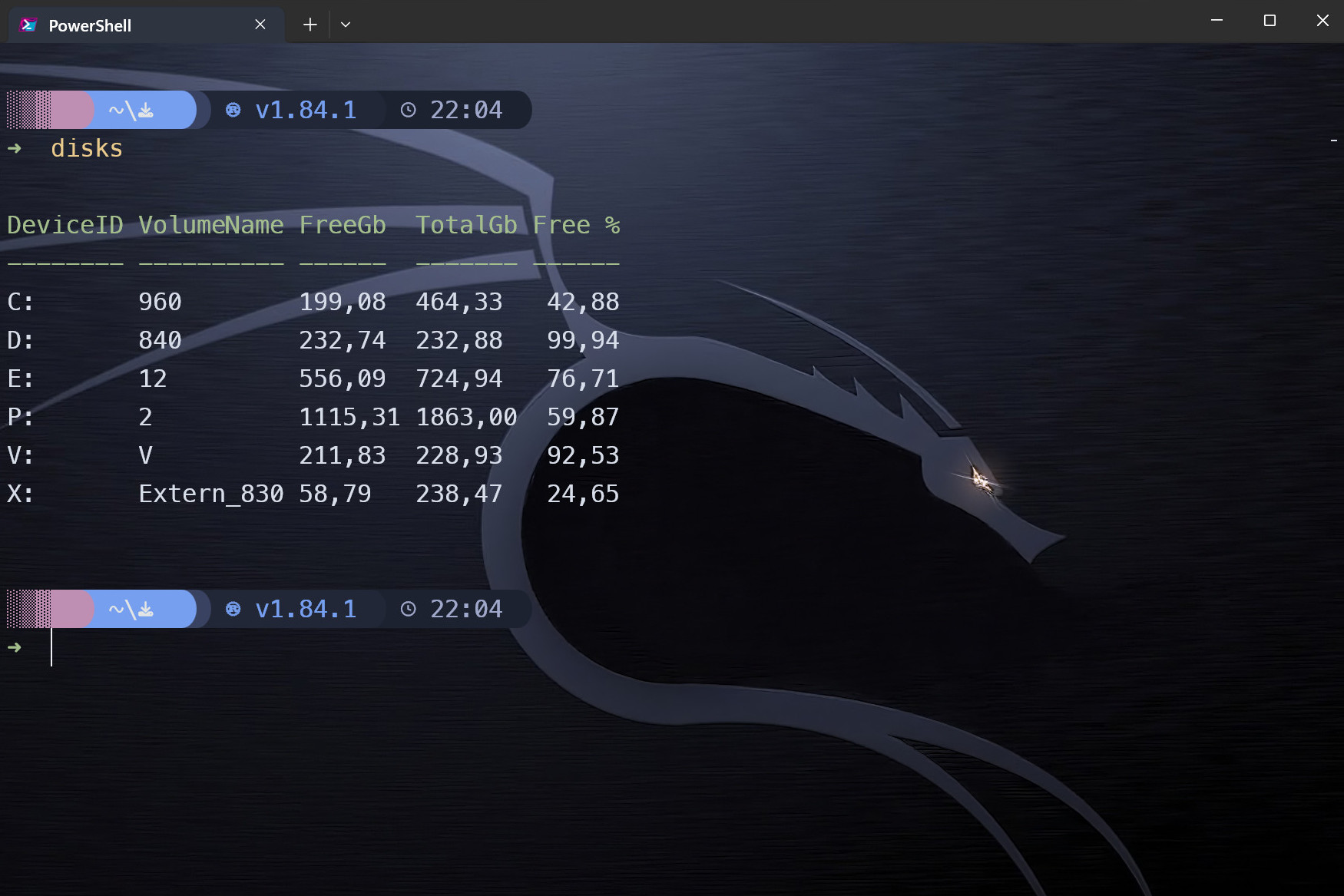
Type disks and hit Enter to display disk information in human readable format.
Script
function disks {

    Get-WmiObject -Class Win32_LogicalDisk |
    Select-Object -Property DeviceID, VolumeName,
    @{Label = 'FreeGb'; expression = { ($_.FreeSpace / 1GB).ToString('F2') } },
    @{Label = 'UsedGb'; expression = { (($_.Size - $_.FreeSpace) / 1GB).ToString('F2') } }, # Calculated Used Space
    @{Label = 'TotalGb'; expression = { ($_.Size / 1GB).ToString('F2') } },
    @{label = 'Free %'; expression = { [Math]::Round(($_.freespace / $_.size) * 100, 2) } } |
    Format-Table
}
Find files and folders
A script with options to view, delete or edit files with external tools.
Script
$env:FZF_DEFAULT_OPTS = @"
--layout=reverse
--cycle
--scroll-off=5
--border
--preview-window=right,60%,border-left
--bind ctrl-u:preview-half-page-up
--bind ctrl-d:preview-half-page-down
--bind ctrl-f:preview-page-down
--bind ctrl-b:preview-page-up
--bind ctrl-g:preview-top
--bind ctrl-h:preview-bottom
--bind alt-w:toggle-preview-wrap
--bind ctrl-e:toggle-preview
"@

    function _fzf_open_path {
        param (
            [Parameter(Mandatory = $true)]
            [string]$input_path
        )
        if ($input_path -match "^.*:\d+:.*$") {
            $input_path = ($input_path -split ":")[0]
        }
        if (-not (Test-Path $input_path)) {
            return
        }
        $cmds = @{
            'bat'    = { bat $input_path }
            'cat'    = { Get-Content $input_path }
            'cd'     = {
                if (Test-Path $input_path -PathType Leaf) {
                    $input_path = Split-Path $input_path -Parent
                }
                Set-Location $input_path
            }
            'remove' = { Remove-Item -Recurse -Force $input_path }
            'echo'   = { Write-Output $input_path }
            'VS Code' = { code $input_path }
        }
        $cmd = $cmds.Keys | fzf --prompt 'Select command> '
        & $cmds[$cmd]
    }

    function _fzf_get_path_using_fd {
        $input_path = fd --type file --follow --exclude .git |
        fzf --prompt 'Files> ' `
            --header-first `
            --header 'CTRL-S: Switch between Files/Directories' `
            --bind 'ctrl-s:transform:if not "%FZF_PROMPT%"=="Files> " (echo ^change-prompt^(Files^> ^)^+^reload^(fd --type file^)) else (echo ^change-prompt^(Directory^> ^)^+^reload^(fd --type directory^))' `
            --preview 'if "%FZF_PROMPT%"=="Files> " (bat --color=always {} --style=plain) else (eza -T --colour=always --icons=always {})'
        return $input_path
    }

    function _fzf_get_path_using_rg {
        $INITIAL_QUERY = "${*:-}"
        $RG_PREFIX = "rg --column --line-number --no-heading --color=always --smart-case"
        $input_path = "" |
        fzf --ansi --disabled --query "$INITIAL_QUERY" `
            --bind "start:reload:$RG_PREFIX {q}" `
            --bind "change:reload:sleep 0.1 & $RG_PREFIX {q} || rem" `
            --bind 'ctrl-s:transform:if not "%FZF_PROMPT%" == "1. ripgrep> " (echo ^rebind^(change^)^+^change-prompt^(1. ripgrep^> ^)^+^disable-search^+^transform-query:echo ^{q^} ^> %TEMP%\rg-fzf-f ^& type %TEMP%\rg-fzf-r) else (echo ^unbind^(change^)^+^change-prompt^(2. fzf^> ^)^+^enable-search^+^transform-query:echo ^{q^} ^> %TEMP%\rg-fzf-r ^& type %TEMP%\rg-fzf-f)' `
            --color 'hl:-1:underline,hl+:-1:underline:reverse' `
            --delimiter ':' `
            --prompt '1. ripgrep> ' `
            --preview-label 'Preview' `
            --header 'CTRL-S: Switch between ripgrep/fzf' `
            --header-first `
            --preview 'bat --color=always {1} --highlight-line {2} --style=plain' `
            --preview-window 'up,60%,border-bottom,+{2}+3/3'
        return $input_path
    }

    function fdg {
        _fzf_open_path $(_fzf_get_path_using_fd)
    }

    function rgg {
        _fzf_open_path $(_fzf_get_path_using_rg)
    }


    # SET KEYBOARD SHORTCUTS TO CALL FUNCTION

    Set-PSReadLineKeyHandler -Key "Ctrl+q" -ScriptBlock {
        [Microsoft.PowerShell.PSConsoleReadLine]::RevertLine()
        [Microsoft.PowerShell.PSConsoleReadLine]::Insert("fdg")
        [Microsoft.PowerShell.PSConsoleReadLine]::AcceptLine()
    }

    Set-PSReadLineKeyHandler -Key "Ctrl+f" -ScriptBlock {
        [Microsoft.PowerShell.PSConsoleReadLine]::RevertLine()
        [Microsoft.PowerShell.PSConsoleReadLine]::Insert("rgg")
        [Microsoft.PowerShell.PSConsoleReadLine]::AcceptLine()
    }
There are two ways to get a file path.
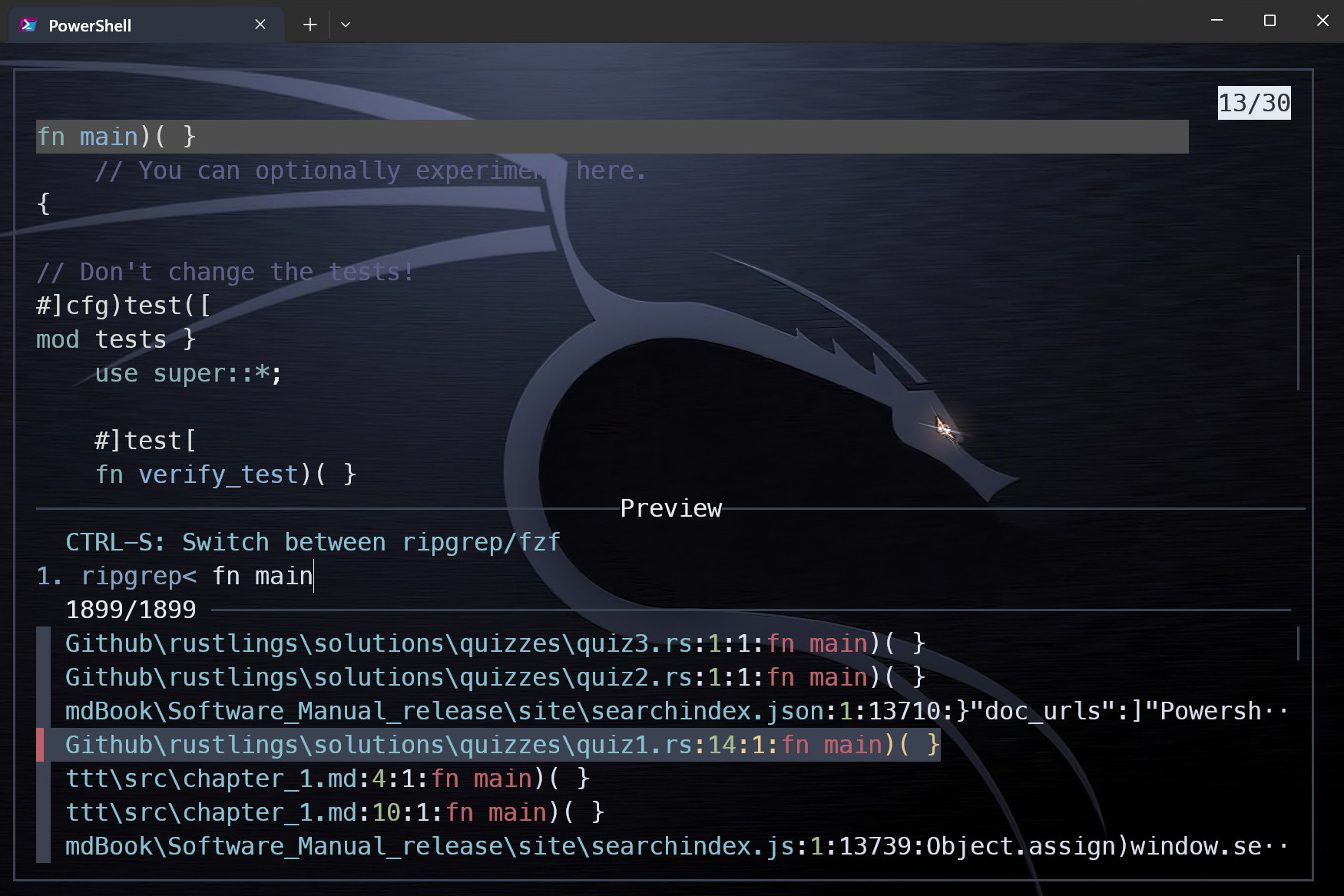
Through ripgrep mode.
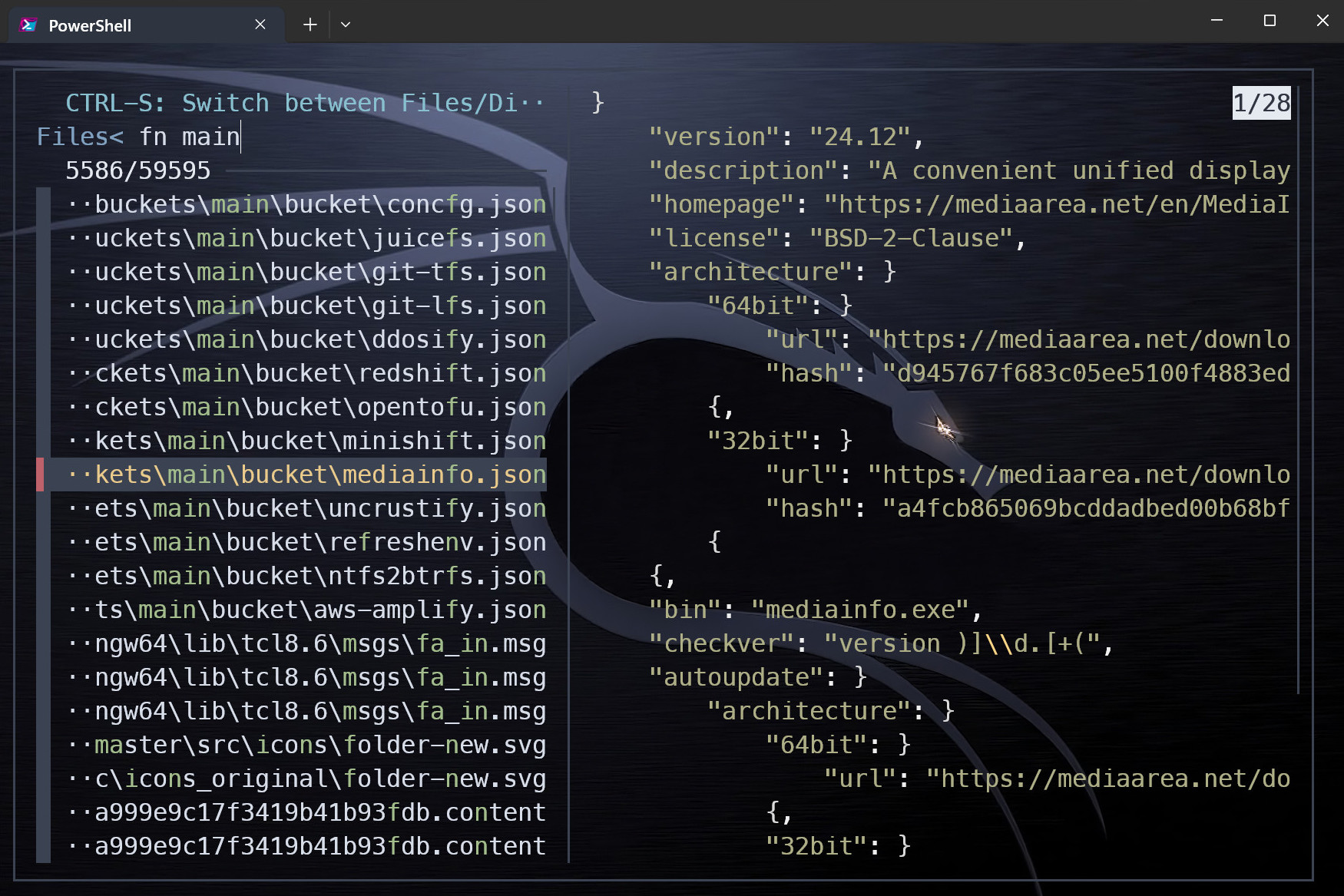
Through fd mode.
To open in Ripgrep mode, type rgg and hit Enter or press Ctrl + f.
To open in fd mode, type fdg and hit Enter or press Ctrl + q.
Press ↑ or ↓ to navigate the list. Press Shift + ↑ or ↓ to navigate the preview.
ctrl + s - switch between files and directories
ctrl + u - preview-half-page-up
ctrl + d - preview-half-page-down
ctrl + f - preview-page-down
ctrl + b - preview-page-up
ctrl + g - preview-top
ctrl + h - preview-bottom
ctrl + e - toggle-preview
alt + w - toggle-preview-wrap
Open files or folders with bat, cat, cd, echo or VS Code. Delete with 'remove'.
[!NOTE] The script sets two keybindings via PSReadLineKeyHandler.
Find fz
File search script utilizing fzf, ripgrep and bat.
Script
 function fz {

        $INITIAL_QUERY = "${*:-}"
        $RG_PREFIX = "rg --column --line-number --no-heading --color=always --smart-case"
        "" |
        fzf --ansi --disabled --query "$INITIAL_QUERY" `
        --bind "start:reload:$RG_PREFIX {q}" `
        --bind "change:reload:sleep 0.1 & $RG_PREFIX {q} || rem" `
        --bind 'ctrl-s:transform:if not "%FZF_PROMPT%" == "1. ripgrep> " (echo ^rebind^(change^)^+^change-prompt^(1. ripgrep^> ^)^+^disable-search^+^transform-query:echo ^{q^} ^> %TEMP%\rg-fzf-f ^& type %TEMP%\rg-fzf-r) else (echo ^unbind^(change^)^+^change-prompt^(2. fzf^> ^)^+^enable-search^+^transform-query:echo ^{q^} ^> %TEMP%\rg-fzf-r ^& type %TEMP%\rg-fzf-f)' `
        --color 'hl:-1:underline,hl+:-1:underline:reverse' `
        --delimiter ':' `
        --prompt '1. ripgrep> ' `
        --preview-label 'Preview' `
        --header 'CTRL-S: Switch between ripgrep/fzf' `
        --header-first `
        --preview 'bat --color=always {1} --highlight-line {2} --style=plain' `
        --preview-window 'up,60%,border-bottom,+{2}+3/3'
        }
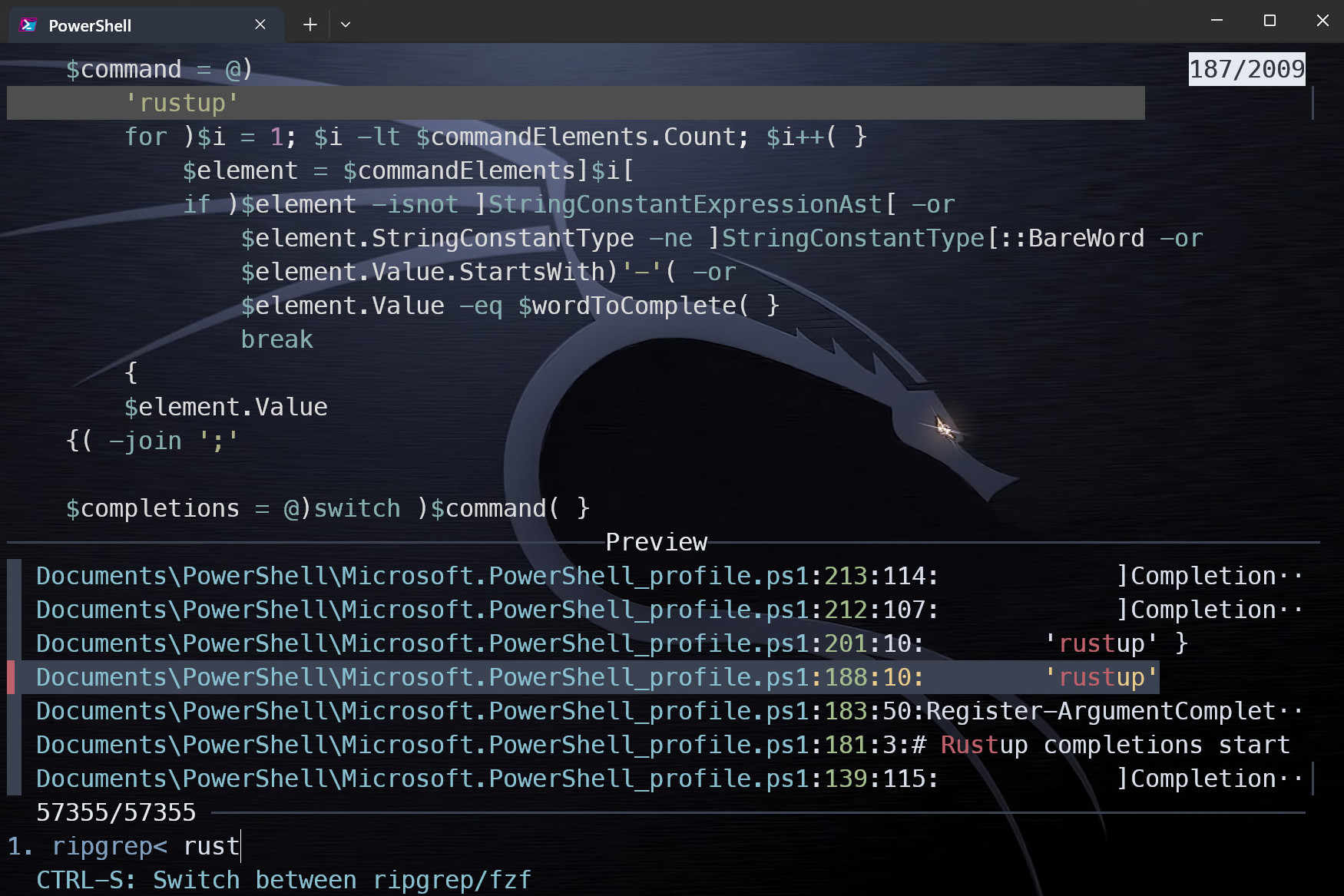
Type fz and hit Enter.
Press Ctrl + S to switch between ripgrep and fzf.
Press ↑ or ↓ to navigate the list. Press Enter to select.
Press Shift + ↑ or ↓ to navigate the preview.
Find fza
File searcher script utilizing fzf, fd and bat.
Script
function fza {
    fd --type file --follow --exclude .git |
    fzf --style=full `
        --bind 'focus:transform-header:file --brief {}' `
        --preview 'bat --color=always {} --style=numbers' `
        --preview-window '~3' --reverse `

}
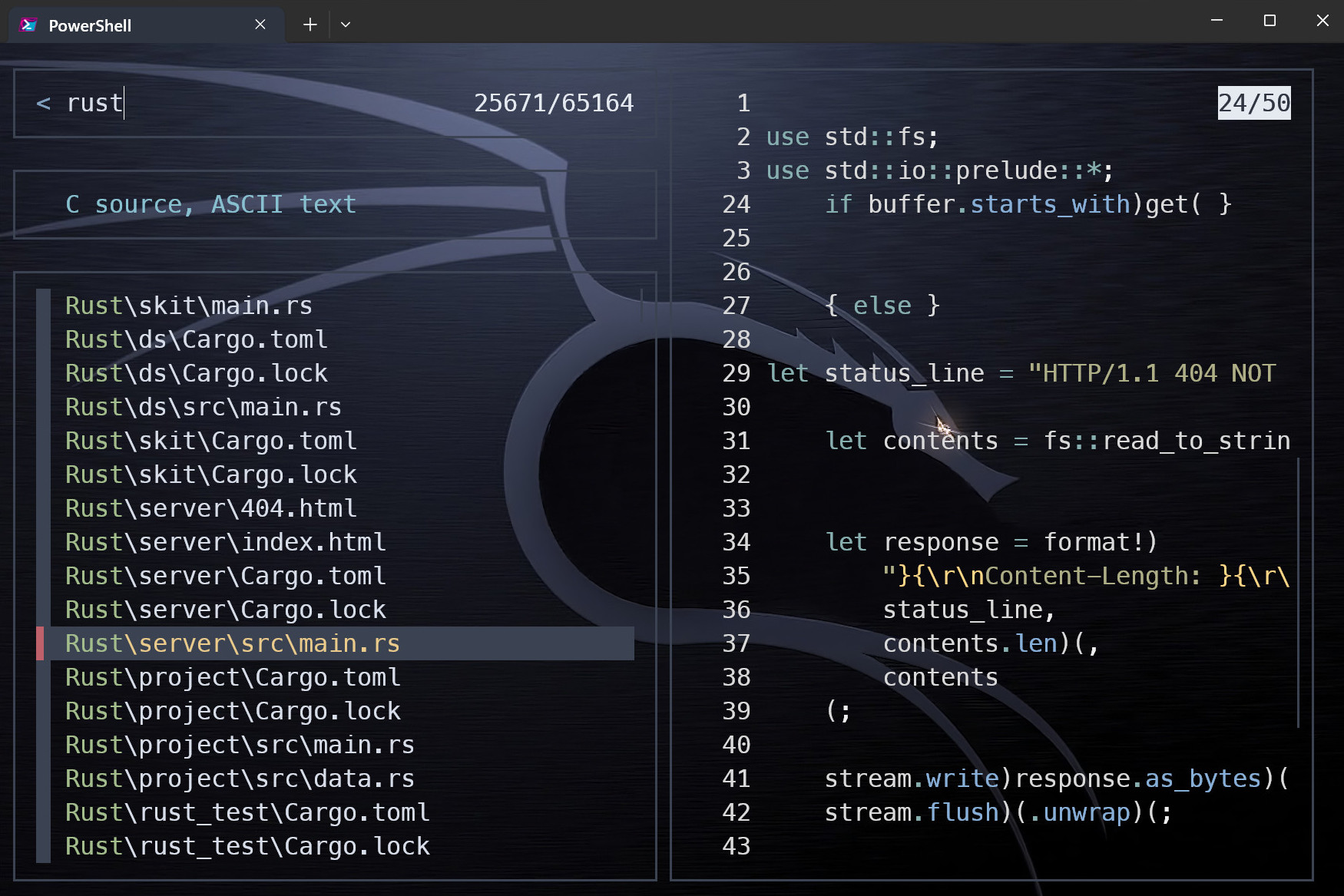
Type fza and hit Enter.
Press ↑ or ↓ to navigate the list.
Press Shift + ↑ or ↓ to navigate the preview.
Google search
Search Google from the command line. Type gog and a search term and hit Enter.
Opens in your default browser.
Script
Function search-google {
    $query = 'https://www.google.com/search?q='
    $args | ForEach-Object { $query = $query + "$_+" }
    $url = $query.Substring(0, $query.Length - 1)
    Start-Process "$url"
}

Set-Alias gog search-google
eza
List files with details using the e alias. More information in the eza document.
Script
function e {
    eza `
        --long `
        --hyperlink `
        --icons=always `
        --git-repos `
        --git `
        --header `
        --flags `
        --created `
        --time-style long-iso `
        --group-directories-first `
        --context `
        --total-size `
        --all `

}
yt-dlp
Requires yt-dlp. More information here. A short user guide is available here.
winget install yt-dlp
Type ytm and a link and press Enter.
[!NOTE] This script recodes a video to mp4/mkv.
Script
Function ytm {
    yt-dlp `
        --progress `
        --console-title `
        --video-multistreams `
        --audio-multistreams `
        --format-sort "height:1080,fps" `
        --format "bestvideo+bestaudio/best" `
        --check-formats `
        --merge-output-format "mp4/mkv" `
        --recode-video "mp4/mkv" `
        --embed-thumbnail `
        --embed-metadata `
        --embed-chapters `
        --force-keyframes-at-cuts `
        --sponsorblock-mark "all" `
        --write-auto-subs --sub-lang "en.*" `
        $args
}
Get-MyIP
Fetch WAN ip.
function Get-MyIP {
    (Invoke-RestMethod -Uri "https://api.ipify.org")
}
Paste into your $Profile
Open path in Directory Opus
function Open {
    $opusPath = "C:\Program Files\GPSoftware\Directory Opus\dopus.exe"
    $folderPath = Get-Location

    $folderPath = $folderPath -replace '\{', '' -replace '\}', ''

    Start-Process $opusPath -ArgumentList "/path `"$folderPath`""
}
Open path in Explorer
function Open {
    $folderPath = Get-Location
    Invoke-Item $folderPath
}
List items
function ll { Get-ChildItem -Force | Format-Table -AutoSize }
function la { Get-ChildItem -Force -Attributes Hidden, ReadOnly, System | Format-Table -AutoSize }
function l { Get-ChildItem -Name }