Yazi
- Navigation
- Selection
- File operations
- Copy paths
- Filter files
- Find files
- Search files
- Sorting
- Multi-tab
Tabbed file manager with preview supporting numerous file types.
The install instructions are here. Don't forget to add the shell wrapper. Plugins are also available.
Add a shortcut ! to drop to the shell in current directory. Type exit to return to yazi. Add this keybinding to your keymap.toml file:
[[manager.prepend_keymap]]
on   = "!"
run  = 'shell "pwsh.exe" --block'
desc = "Open PowerShell here"
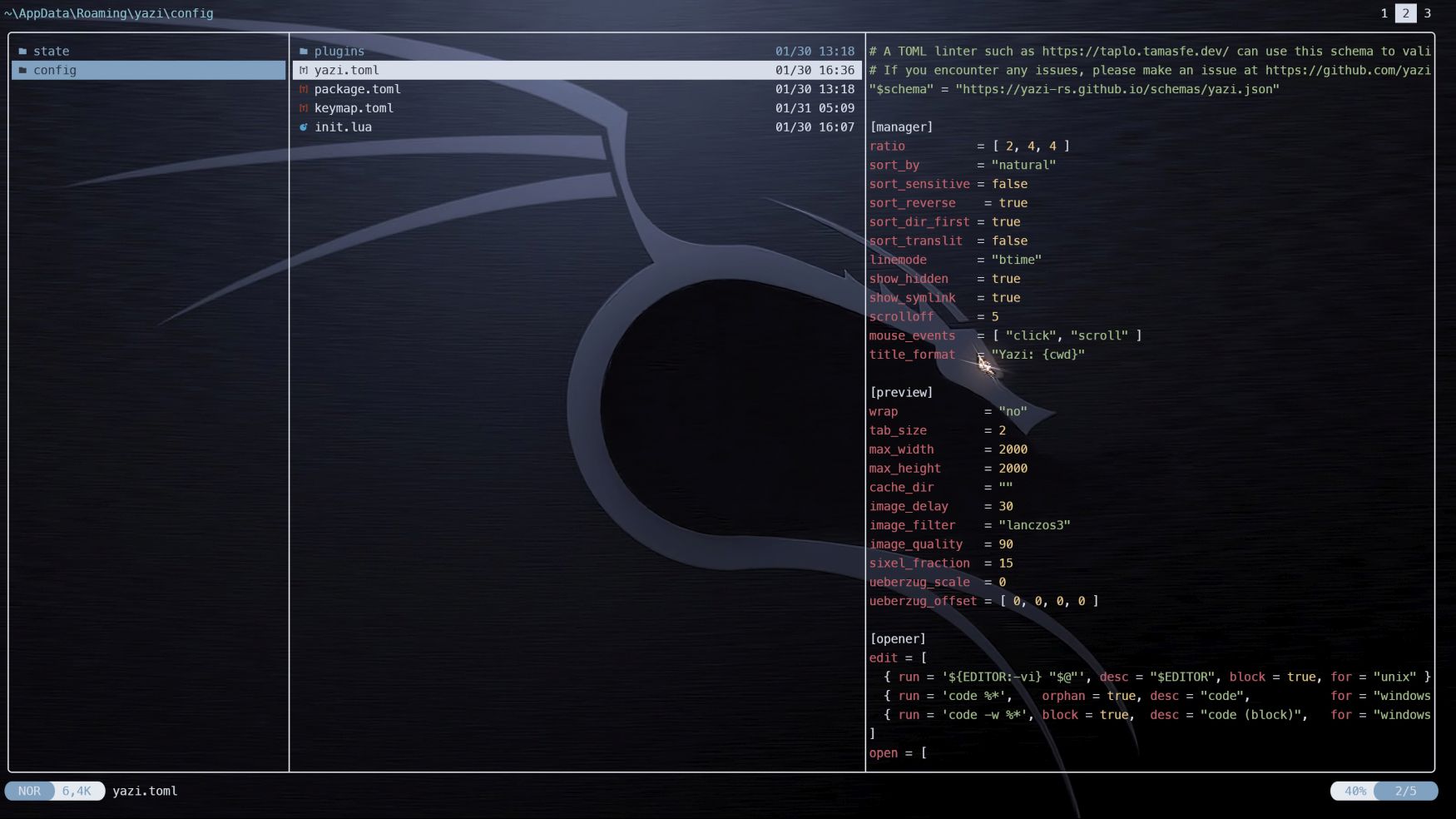
mpv for video playback is recommended. Edit yazi.toml accordingly.
[!TIP]
For all keybindings, see the default keymap.toml file.
Navigation
To navigate between files and directories you can use the arrow keys ←, ↓, ↑ and → or Vim-like keys such as h, j, k, l:
| Key binding | Alternate key | Action |
|---|---|---|
| k | ↑ | Move the cursor up |
| j | ↓ | Move the cursor down |
| l | → | Enter hovered directory |
| h | ← | Leave the current directory and into its parent |
Further navigation commands can be found in the table below.
| Key binding | Action |
|---|---|
| K | Seek up 5 units in the preview |
| J | Seek down 5 units in the preview |
| g ⇒ g | Move cursor to the top |
| G | Move cursor to the bottom |
| z | Jump to a directory using zoxide |
| Z | Jump to a directory or reveal a file using fzf |
Selection
To select files and directories, the following commands are available.
| Key binding | Action |
|---|---|
| Space | Toggle selection of hovered file/directory |
| v | Enter visual mode (selection mode) |
| V | Enter visual mode (unset mode) |
| Ctrl + a | Select all files |
| Ctrl + r | Inverse selection of all files |
| Esc | Cancel selection |
File operations
To interact with selected files/directories use any of the commands below.
| Key binding | Action |
|---|---|
| o | Open selected files |
| O | Open selected files interactively |
| Enter | Open selected files |
| Shift + Enter | Open selected files interactively (some terminals don't support it yet) |
| Tab | Show the file information |
| y | Yank selected files (copy) |
| x | Yank selected files (cut) |
| p | Paste yanked files |
| P | Paste yanked files (overwrite if the destination exists) |
| Y or X | Cancel the yank status |
| d | Trash selected files |
| D | Permanently delete selected files |
| a | Create a file (ends with / for directories) |
| r | Rename selected file(s) |
| . | Toggle the visibility of hidden files |
Further file operation commands can be found in the table below.
| Key binding | Action |
|---|---|
| ; | Run a shell command |
| : | Run a shell command (block until finishes) |
| - | Symlink the absolute path of yanked files |
| _ | Symlink the relative path of yanked files |
| Ctrl + - | Hardlink yanked files |
Copy paths
To copy paths, use any of the following commands below.
Observation: c ⇒ d indicates pressing the c key followed by pressing the d key.
| Key binding | Action |
|---|---|
| c ⇒ c | Copy the file path |
| c ⇒ d | Copy the directory path |
| c ⇒ f | Copy the filename |
| c ⇒ n | Copy the filename without extension |
Filter files
| Key binding | Action |
|---|---|
| f | Filter files |
Find files
| Key binding | Action |
|---|---|
| / | Find next file |
| ? | Find previous file |
| n | Go to the next found |
| N | Go to the previous found |
Search files
| Key binding | Action |
|---|---|
| s | Search files by name using fd |
| S | Search files by content using ripgrep |
| Ctrl + s | Cancel the ongoing search |
Sorting
To sort files/directories use the following commands.
Observation: , ⇒ a indicates pressing the , key followed by pressing the a key.
| Key binding | Action |
|---|---|
| , ⇒ m | Sort by modified time |
| , ⇒ M | Sort by modified time (reverse) |
| , ⇒ b | Sort by birth time |
| , ⇒ B | Sort by birth time (reverse) |
| , ⇒ e | Sort by file extension |
| , ⇒ E | Sort by file extension (reverse) |
| , ⇒ a | Sort alphabetically |
| , ⇒ A | Sort alphabetically (reverse) |
| , ⇒ n | Sort naturally |
| , ⇒ N | Sort naturally (reverse) |
| , ⇒ s | Sort by size |
| , ⇒ S | Sort by size (reverse) |
| , ⇒ r | Sort randomly |
Multi-tab
| Key binding | Action |
|---|---|
| t | Create a new tab with CWD |
| 1, 2, ..., 9 | Switch to the N-th tab |
| [ | Switch to the previous tab |
| ] | Switch to the next tab |
| { | Swap current tab with previous tab |
| } | Swap current tab with next tab |
| Ctrl + c | Close the current tab |